Declaring Transfer Relationships
Last updated: November 11, 2026
Transfer Relationships record personal data moving between two parties across jurisdictions, and the terms that make that movement lawful. A Transfer Relationship builds on a Legal Relationship you have already declared on a Processing Activity (PA), so each pair of parties is defined once and then enriched with transfer details.
Here's what you can do with Transfer Relationships:
Start from your Legal Relationships: When you declare a Legal Relationship on a Processing Activity (PA), the same party pair appears automatically in the Transfers tab of the entity, ready for transfer details.
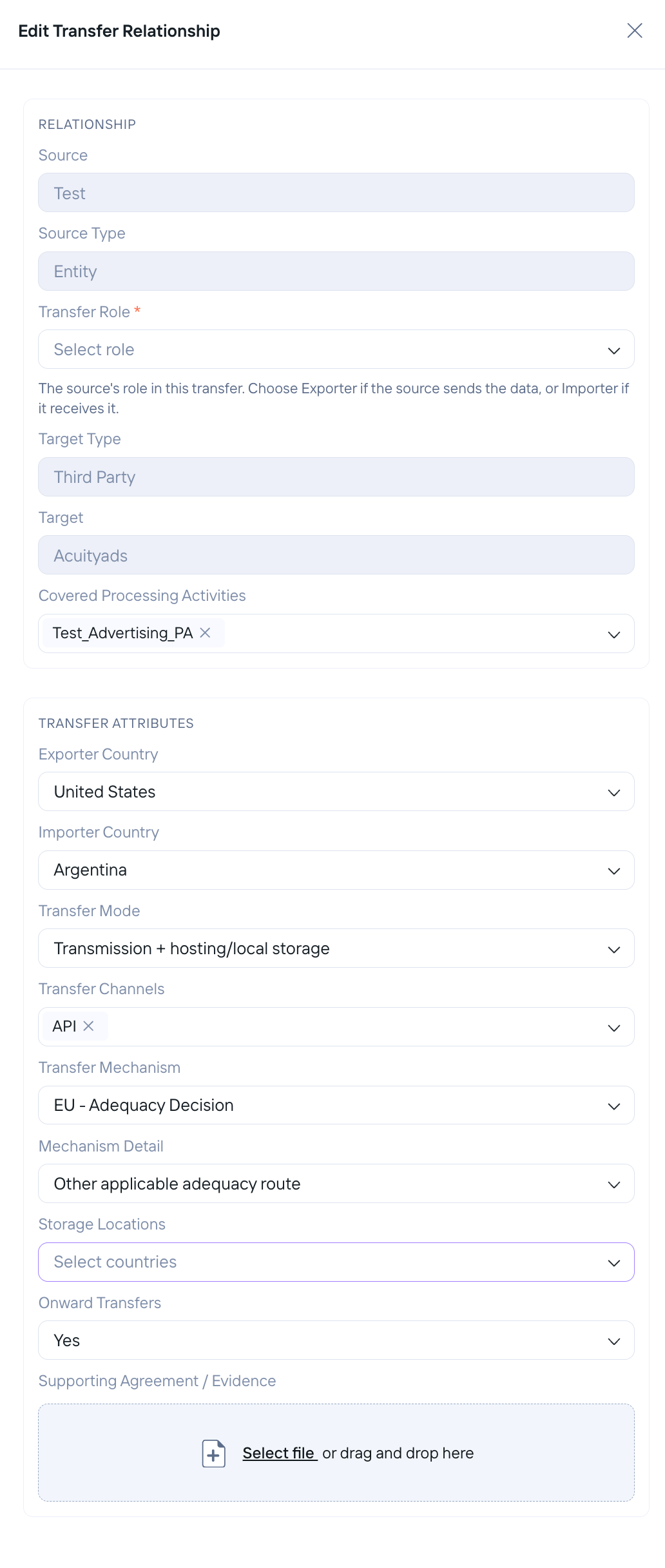
Declare who exports and who imports: Set the source's Transfer Role to Exporter if it sends the data, or Importer if it receives it.
Scope transfers to processing activities: Covered Processing Activities are listed automatically from the Legal Relationships behind the transfer, so each transfer is already linked to the activities it serves.
Capture the transfer attributes: Record the Exporter Country, Importer Country, Transfer Mode, Transfer Channels, Transfer Mechanism, Mechanism Detail, Storage Locations and Onward Transfers.
Choose a recognised legal mechanism: Pick from EU - Adequacy Decision, EU - SCCs (Standard Contractual Clauses), EU - BCRs (Binding Corporate Rules) or EU - Approved Certification Mechanism, or use Add New + for your own.
Attach evidence: Upload the signed agreement or other proof under Supporting Agreement / Evidence if available.
Please Note: Transfer Role is mandatory. Transfers created from a Legal Relationship start with their transfer attributes empty until you complete them. When editing a transfer, the Source, Source Type, Target Type and Target are fixed.
How to Declare a Transfer Relationship:
Follow these steps to declare a transfer, starting from a Processing Activity (PA).
1. Go to Processing Activities and open the activity you want to work with, for example Test_Advertising_PA.

2. On the Processing Activity, click Link + and select Third Party (or Entity) to declare the Legal Relationship. Set the source role, the target and the target role.

3. Open the Relationships tab to confirm the Legal Relationship, for example Test as Controller and Acuityads as Processor for Test_Advertising_PA.

4. Switch to Transfers tab (or) Go to Entities, open the owner entity (for example Test), and select the Transfers tab. The party pair from your Legal Relationship is already listed, with its transfer details still empty.

5. Click the transfer row to open Edit Transfer Relationship. Select the Transfer Role (Exporter or Importer), then fill in the Transfer Attributes that apply.
6. Save the transfer.