Introducing Tests in Web Auditor
Last updated: October 26, 2026
Precision scanning is here.
On Monday, November 2, 2026, Web Auditor scans start running as Tests. Scan only the regions, policies and pages you choose, each on its own schedule, and leave the rest of your website alone.
Live: Monday, November 2, 2026
Downtime: none
What you need to do: nothing. Your current set-up moves over automatically.
Why we built Tests
Until now, Web Auditor scanned each website as one unit. Every geography, every policy and every page ran together, on one schedule. That made three everyday jobs slow and used more of your page allowance than they needed.
What you wanted to do | Before | With Tests |
|---|---|---|
Confirm a fix in one region | Fixing a California issue meant Germany and the UK rescanned too | Run your California test. Nothing else scans. |
Watch sensitive pages more closely | Ten health or payment pages meant all 100 pages rescanned every time | Give those ten pages their own weekly test; scan the rest monthly |
Check one law on demand | A quick CIPA check ran every policy for California | Run a test with only the CIPA policy selected |
How Tests work
A test is a scan you define by three things: geographies, policies and pages. Each test has its own name, schedule, results and last-scanned date. One website can hold as many tests as you need.
For example, one website could hold three tests:
Test | Geography | Policies | Pages | Schedule |
|---|---|---|---|---|
California compliance | California | CCPA, Opt-out and others | All pages | Monthly |
Health pages | California | CIPA | Health pages (10) | Weekly |
Germany GDPR | Germany | Opt- in, No Action and others | All pages | Monthly |
What's new
Run one test at a time. Rescan a single region, page group or policy set without touching the rest of the site. You can still run every test at once, on one website or across several from the website list.
A schedule for every test. Check sensitive pages weekly and the rest of the site monthly.
Policies and controls per test. Pick the laws a test checks and switch off controls you've already reviewed. Your workspace policy settings don't change.
Page types you define once. Group pages as "Checkout" or "Health pages" by a page element, a URL list or a sitemap, then reuse them in any test on that website.
Custom journeys become tests. A journey runs as its own test, on its own schedule, without triggering a full website scan.
Two kinds of sign-in. Site sign-in gets us past a password-protected site, such as staging. Test sign-in scans pages behind your product's login.
Results by test, or across all of them. Open a test on the Tests tab and click any count to jump to that tab, already filtered. The Policies tab shows each policy across every test and geography.
A full history for every page. The Pages tab shows which tests and geographies covered each page, how many times it was scanned, and why any scan failed.
What happens to your set-up on November 2
We move every workspace over the weekend before launch. On Monday, November 2, your existing scans are already running as tests, with the same configuration and schedules.
Today | From November 2 |
|---|---|
Your regular website scan | One test with the same configuration and schedule |
Each custom journey | Its own test. Four journeys become four tests. |
A scan with authentication | Two tests: one with sign-in and one without |
Issues, inventory and past results | Kept as they are |
Exports | A new Test column shows which test found each item and when that test last ran |
Your first day with Tests
Open a website and go to the Tests tab. Your existing set-up is there as Default Test, plus one test for each custom journey.
Check each test's geographies, policies and schedule. They match what you had before. You can change any of them without losing past results.
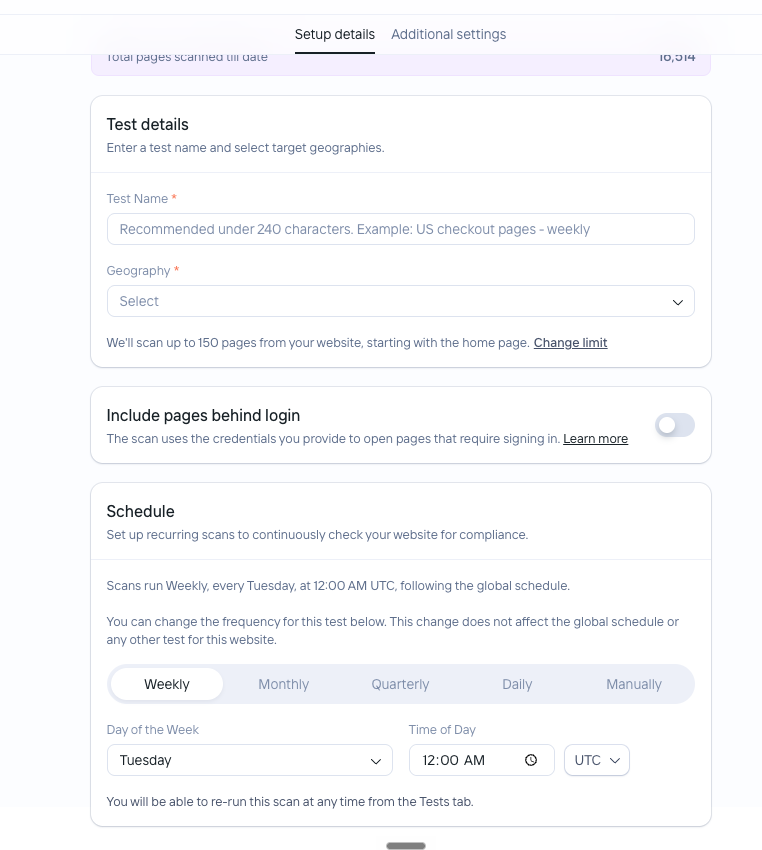
Split out anything that needs its own schedule. Use + Add test for a region you fix often, a set of sensitive pages, or a single law you check on demand. Only a name and a geography are required.
Look at the Pages tab. Find any pages that failed to scan, and see why.
Frequently asked questions
Moving to Tests
Will there be any downtime?
No. There is no downtime for this change.
Do I need to do anything before November 2?
No. We move your set-up for you, and your scans keep running on their current schedules.
What happens to my existing websites?
We turn your current set-up into tests and keep your configuration and schedules. Your regular scan becomes one test. Each custom journey becomes its own test. A scan with authentication becomes two tests: one with sign-in and one without.
Will I keep my scan history and issues?
Yes. Your issues, inventory and past results move over as they are.
Can I keep using the old view for a while?
No. Every workspace moves to the new experience on November 2.
Do my exports change?
Yes. Exports gain a Test column, so you can see which test found each item and when that test last ran.
Creating and running tests
What is a test?
A scan you define by geographies, policies and pages. Each test has a name, its own schedule and its own results. A website can hold as many tests as you need.
Do I have to create tests myself?
No. When you add a website, "Start a test immediately" is checked by default, so we create a test and start it. You only need a URL and a geography.
On an empty Tests tab you can also pick a ready-made quick test, such as "US state privacy test" or "EU and UK test".
Alternatively, you can also add a test as per your own customisation.
What's the least I need to fill in?
A test name and at least one geography. Pages, policies, controls, URL exclusions and sign-in details are optional, under Additional settings.
How do I scan just one region?
Create a test with only that geography, or run an existing test for that region. No other geography is scanned.
Can I run all my tests at once?
Yes. On a website, you can run all of its tests together. On the website list, select several websites to run every test on each of them.
Can one test cover several geographies?
Yes. A page-based test can cover many geographies, with its policies grouped by geography. Custom journeys work differently; see "Journeys and sign-in" below.
Who can create tests?
Super Admins, Workspace Admins, Website Admins and Website Editors. Viewers can see tests and their results, but can't create, edit or delete them.
Can I save a test as a draft?
No. If you leave the form before you create the test, your entries are not saved.
Can two tests be identical?
No. Two tests on the same website can't have the same geographies, pages and policies. This stops a duplicate test from using your page allowance twice.
Can I delete a test?
Yes, from the three dot menu on the test. Deleting removes that test and its results. Your other tests and your website's inventory stay as they are. Deleting can't be undone, so we ask you to confirm first.
Policies and controls
If I switch off a policy or control in a test, does it change my workspace settings?
No. Choices inside a test apply to that test only. Your Policy Settings stay as they are.
Why can't I see some policies when I set up a test?
Policies and controls disabled for your whole workspace are hidden in test set-up. Turn them on in Policy Settings first.
Can I check a single law on demand, like CIPA?
Yes. Create a test for the geography, keep only that policy selected, and run it whenever you need.
Pages and page allowance
What is a page type?
A reusable name for a group of pages on one website, such as "Checkout" or "Health pages". You can define it by a list of URLs or URL patterns (/account/ matches every page under it), or by a sitemap. Every test on that website can use it.
What happens if I edit a page type?
The change applies to every test that uses it, from each test's next run. Past results don't change. The edit screen tells you how many tests will be affected.
Can I delete a page type?
Not today. You can edit it instead. We left delete out so one click can't break many tests at once.
How many pages does a test scan?
200 by default, starting at the home page. You can raise it up to your workspace page limit. Pages in the page types you select are scanned first.
Do tests share a page allowance?
No. Each test is a separate scan with its own page count. If two tests scan the same page, it counts twice. To use less, keep each test to the pages, geographies and policies it needs.
Journeys and sign-in
What happens to my custom journeys?
Each journey becomes its own test with its own schedule. Running a journey no longer triggers a full website scan.
Why does a journey create one test per geography?
A website can behave differently in each region, so one journey can't cover several at once. If you pick several geographies, the journey runs in the first one and we create a copy of the test for each of the others. The screen tells you how many tests will be created.
Does a journey test raise compliance issues?
No. A journey records what it finds along the route: cookies, scripts, third parties and personal data. It does not check pages against policies.
Results and scores
Will I still get my data inventory?
Yes. Every test includes a fully consented baseline run, so cookies, scripts, third parties, data elements and storage keep being discovered on every scan.
How do I see results for one test?
Open the test on the Tests tab and click any count. You go straight to that tab, filtered to the test.
How is the compliance score calculated?
It's the share of unique policies that pass across all the unique policies applicable website's tests. Each policy counts once, even if several tests check it, and it counts as passing only if it passes in every test that checks it. For example, if your tests check 20 policies and 15 pass, your score is 75.
What does "Last Scan" mean on the website list?
When a test on that website last ran, irrespective of whether the test scan completed or failed.
What happens when a test fails?
The Tests tab marks it Failed. Hover over the info icon next to the Failed chip to see why. For page-level reasons, open the Pages tab.
Why did a page fail to scan?
Open the Pages tab. Each page shows how many times it was scanned, completed and failed, and the reason for each failure.
Need help?
Reach out to your Customer Success Manager or contact support.